1
Choose how to import your website
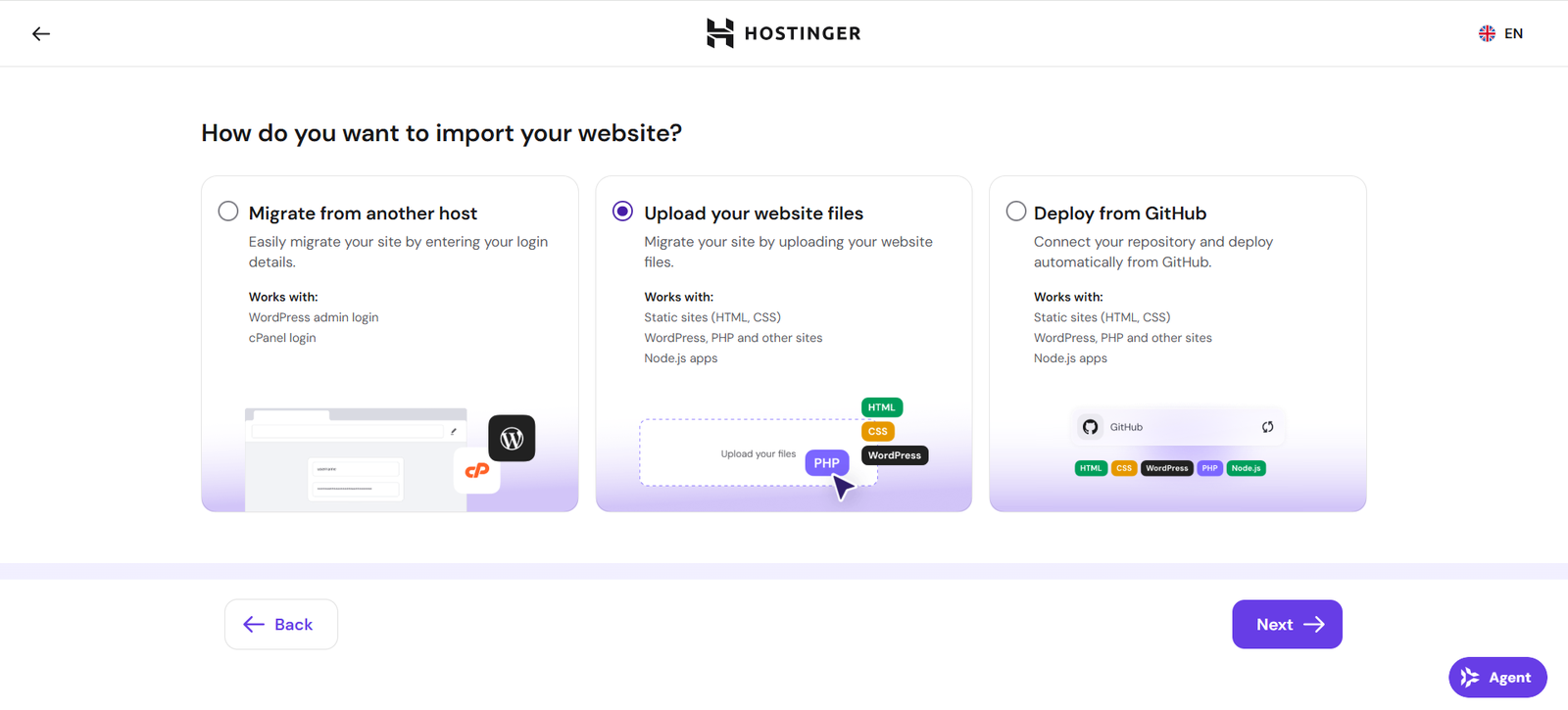
In Hostinger’s migration wizard, select “Upload your website files” and click Next. The other options are migrating from another host and deploying from GitHub.
A practical look at Hostinger for founders, creators and small businesses who want to launch a website.
Referral link — if you buy through it, MarketingFlow may receive a reward at no extra cost to you.
Hostinger provides hosting, domain services, managed WordPress options and website-building tools. It is primarily infrastructure and site creation software—not an email-marketing funnel suite or an agency CRM. It also offers an import wizard for existing sites: you can migrate from another host, upload your website files or deploy from GitHub.
Hosting plans for different website needs, including WordPress-oriented options.
Tools for building and publishing websites without setting up every component manually.
Domain-related services and a dashboard for managing a website.
A small site can start simply; resource-intensive projects may need a more capable plan.
Founders, bloggers and small businesses whose immediate priority is a website, domain and hosting.
Teams that primarily need advanced sales pipelines, multichannel campaigns or agency client management.
Choose Hostinger when you need to publish and host a website. Consider Systeme.io when your main workflow is lead funnels, email sequences and digital-product sales. Consider GoHighLevel for CRM-driven sales and agency automation.
Hostinger is a logical website-infrastructure choice to evaluate, especially if hosting and site launch are your starting point. Compare the current plan limits and renewal price before buying.
A short walkthrough of Hostinger’s import wizard, based on our own test: this is how you upload a ready-made website as files.
Screenshots from MarketingFlow’s hands-on test of Hostinger’s website import. Personal details and file names are covered.
In Hostinger’s migration wizard, select “Upload your website files” and click Next. The other options are migrating from another host and deploying from GitHub.
Click Upload and pick your website archive, for example a ZIP file, in the file dialog. Hostinger lists the supported file types on the page, including .html, .htm, .css and .js.
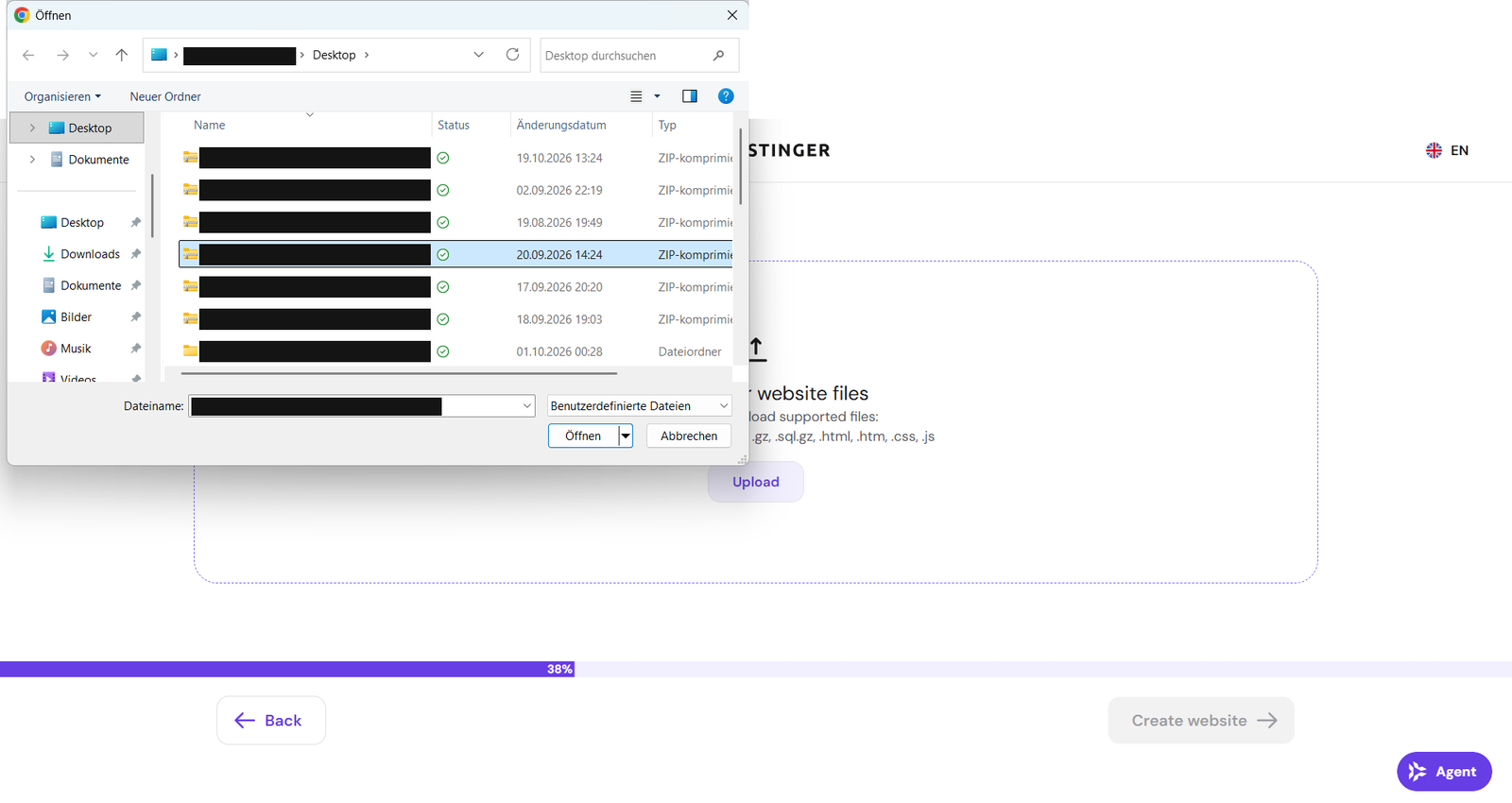
A progress bar shows the upload. The Create website button stays disabled until the files have been uploaded.

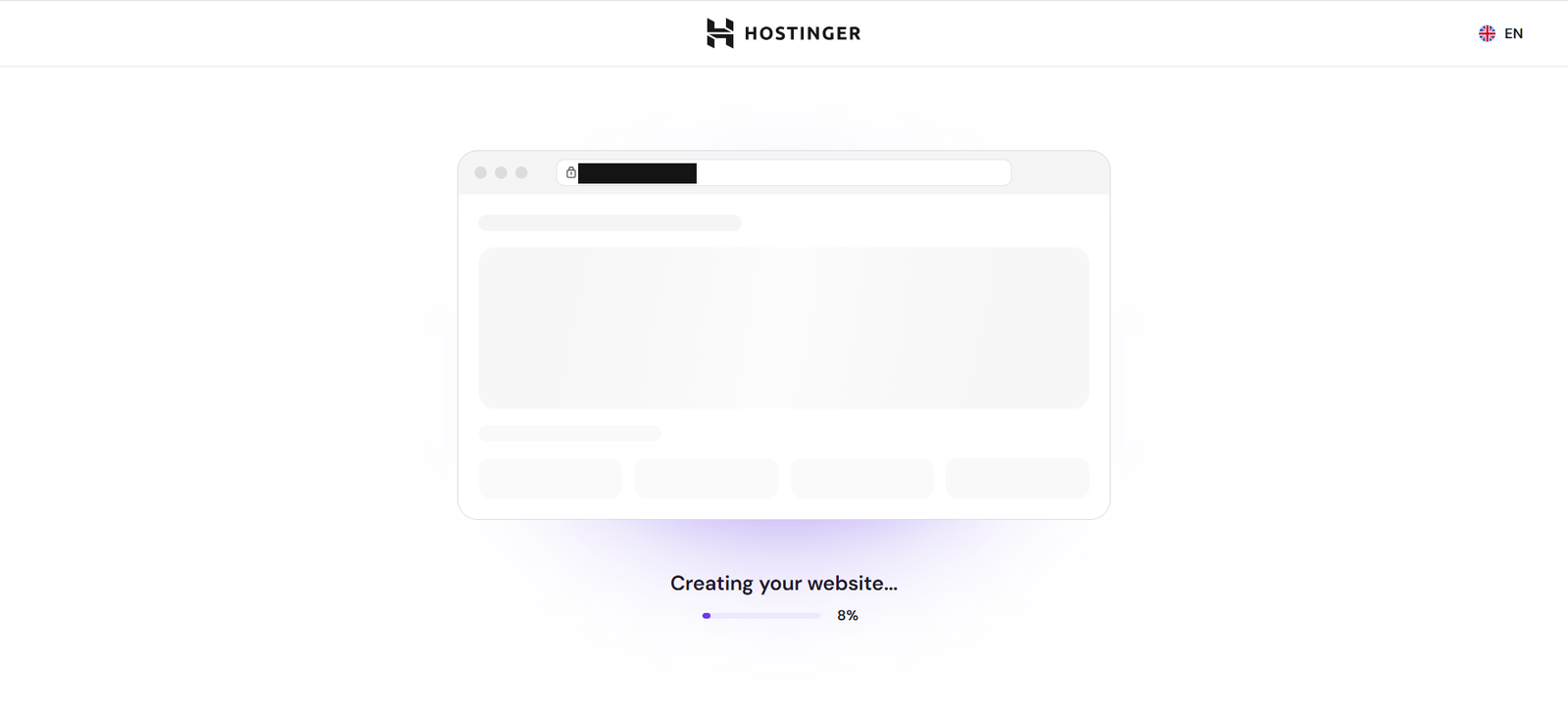
After the upload, click Create website. Hostinger sets up the site from your files and shows a progress indicator while it works.
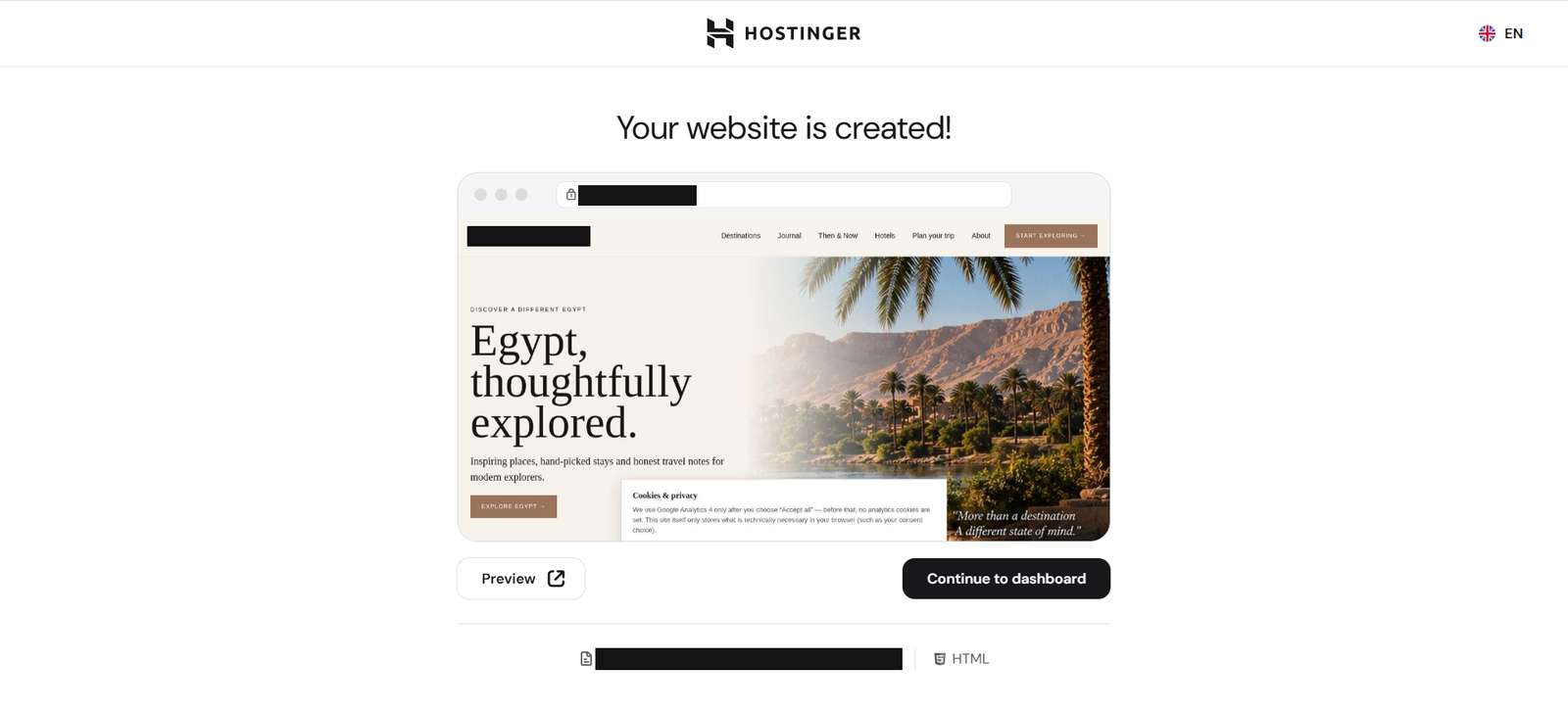
When the migration is complete, Hostinger shows a preview of your website. Use Preview to open it, or Continue to dashboard to manage hosting, domain and settings. It also lists the imported file and the detected site type, here HTML.